Overall Filters Screen
The Overall Filters screen is used to define criteria for filtering system-generated proposals in the XtreamService application. The filters defined on this screen can be used to reduce the number of unwanted proposals that are automatically sent as service hot leads or included in sales campaign search results. Proposals are automatically generated for service appointments and walk-ins at the times defined on the General Settings screen. These filters are also applied to sales campaigns when the Apply Overall Filters check box in the Miscellaneous Information section of the Advanced tab of the Campaign Criteria panel is selected.

|
To access the Overall Filters screen, click the |
 (More) icon and then click the Overall Filters link in the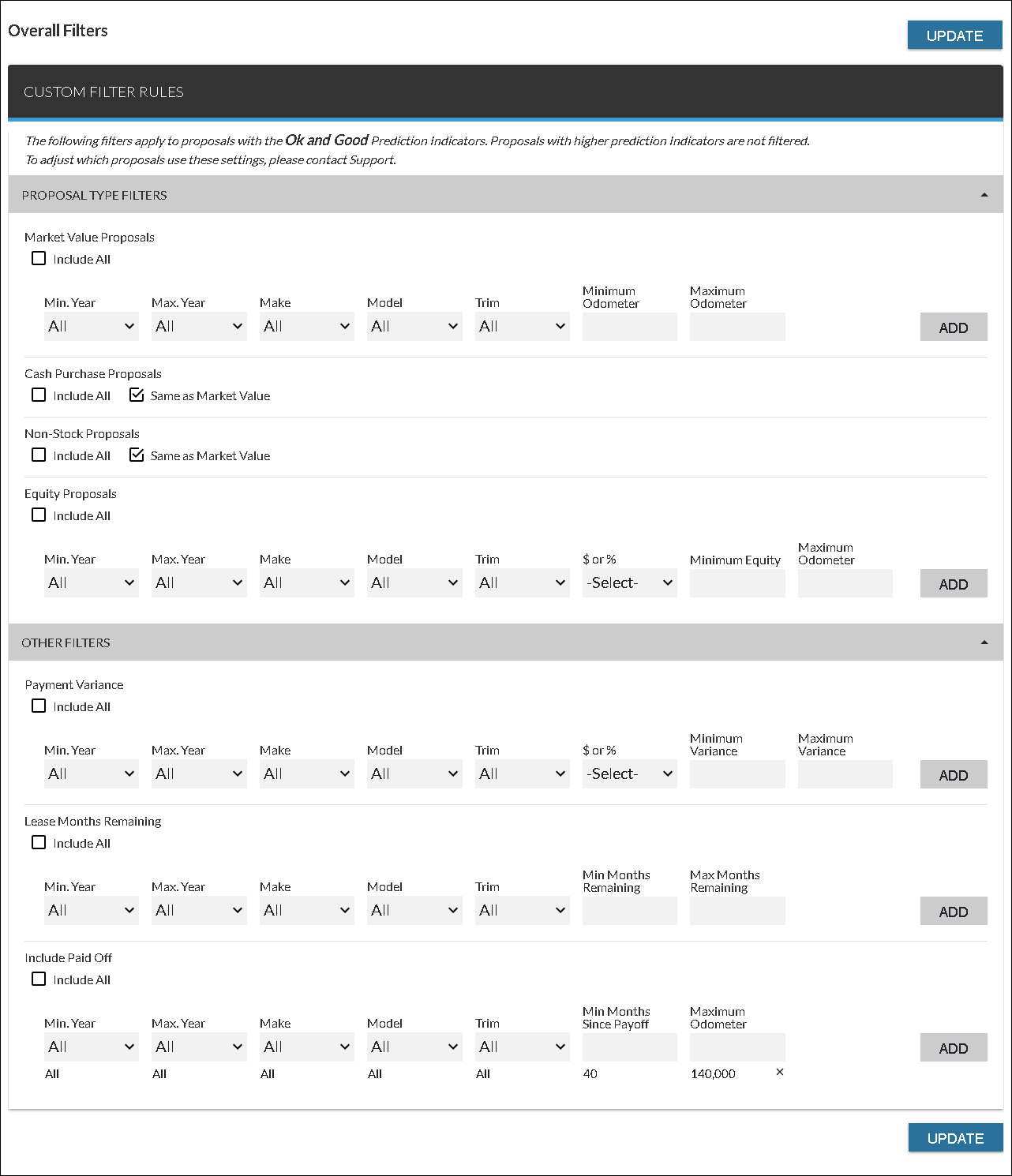
Using the criteria on this screen, system-generated proposals that fall outside of the specified parameters display only in the Outside Parameters column in the Upcoming Appointments panel of the Service Traffic screen. Additionally, these proposals do not display in the Results panel when searching for customers to include in sales campaigns unless the Apply Overall Filters check box is cleared in the Miscellaneous Information section on the Advanced tab of the Campaign Criteria panel. A proposal that meets any of the criteria defined on this screen is not filtered out in this way.
Filter criteria for system-generated leads are only applied to proposals with a certain prediction indicator, such as OK or Good. Leads with a higher prediction indicator are not filtered based on these criteria. For more information about proposal generation settings, refer to Proposal Generation Settings.
The following items are available on the Overall Filters screen for each proposal and filter type.
Include All: Select this check box to allow proposals of the corresponding type to be identified as service hot leads. Settings can be defined for the following proposal and filter types.
- Market Value Proposals
- Cash Purchase Proposals
- Non-Stock Proposals
- Equity Proposals
- Payment Variance
- Lease Months Remaining
- Include Paid Off
Same as Market Value: Select this check box to apply the criteria defined for Market Value proposals to the corresponding proposal type. When the criteria defined for Market Value proposals are updated, the criteria for the corresponding proposal type are also updated.
Note - This check box is only available for cash purchase proposals and non-stock proposals.
For example, to prevent market value proposals, cash purchase proposals, and non-stock proposals from displaying for customers whose current vehicle is older than a model year 2019 and has more than 75,000 miles, select 2019 in the Min Year field for market value proposals. Then enter 75000 in the Maximum Odometer field on the same criteria row and click the ADD button. Select the Same as Market Value check box for both cash purchase proposals and non-stock proposals.
The following fields are available only if the Include All check box for the corresponding filter type is cleared. For cash purchase proposals and non-stock proposals, the Same as Market Value check box must also be cleared.
Min Year: Select the earliest model year of a customer's current vehicle. Proposals do not display for customers whose current vehicle is older than the selected model year. Select All in this field to indicate that no minimum year should be applied.
Max Year: Select the latest model year of a customer's current vehicle. Proposals do not display for customers whose current vehicle is newer than the selected model year. Select All in this field to indicate that no maximum year should be applied.
Make: Select a vehicle make of a customer's current vehicle. Proposals do not display for customers whose current vehicle is not of the selected make. Select All in this field to indicate that proposals for all vehicle makes should display.
Model: Select a vehicle model of a customer's current vehicle. Proposals do not display for customers whose current vehicle is not of the selected make. Select All in this field to indicate that proposals for all models of the selected make should display.
Trim: Select a vehicle trim level of a customer's current vehicle. Proposals do not display for customers whose current vehicle is not of the selected trim level. Select All in this field to indicate that proposals for all trim levels of the associated model should display.
Minimum Odometer: Enter the minimum mileage of a customer's current vehicle. Proposals do not display for customers whose current vehicle has fewer miles than the entered amount. Leave this field blank to indicate that no minimum mileage should be applied.
Maximum Odometer: Enter the maximum mileage of a customer's current vehicle. Proposals do not display for customers whose current vehicle has more miles than the entered amount. Leave this field blank to indicate that no maximum mileage should be applied.
The following fields are available only for Equity proposals.
$ or %: Select whether the entry in the Minimum Equity field should be measured using a dollar amount or a percentage. Separate criteria rows can be added to define both a dollar amount and a percentage for the minimum equity amount.
Minimum Equity: Enter the minimum equity on a customer's current deal. Proposals do not display for customers whose current equity is less than the entered amount. This entry can be entered as a dollar amount or as a percentage, based on the entry in the $ or % field. Leave this field blank to indicate that no minimum equity should be applied.
The following fields are available only for Payment Variance filters.
$ or %: Select whether the entries in the Minimum Variance field and the Maximum Variance field are dollar amounts or percentages. Separate criteria rows can be added to define both a dollar amount and a percentage for the minimum and maximum payment variance.
Minimum Variance: Enter the minimum payment variance between a customer's current deal and the proposed deal. Proposals do not display for customers whose payment variance is less than the entered amount. This entry can be entered as a dollar amount or as a percentage based on the selection in the $ or % field. Leave this field blank to indicate that no minimum payment variance should be applied.
Maximum Variance: Enter the maximum payment variance between a customer's current deal and the proposed deal. Proposals do not display for customers whose payment variance is more than the entered amount. This entry can be entered as a dollar amount or as a percentage based on the selection in the $ or % field. Leave this field blank to indicate that no maximum payment variance should be applied.
The following fields are available only for Lease Months Remaining filters.
Min Months Remaining: Enter the minimum number of months remaining on a customer's current deal. Proposals do not display for customers who have fewer months remaining on their deal than the entered amount. Leave this field blank to indicate that no minimum number of months should be applied.
Max Months Remaining: Enter the maximum number of months remaining on a customer's current deal. Proposals do not display for customers who have more months remaining on their deal than the entered amount. Leave this field blank to indicate that no maximum number of months should be applied.
The following field is available only for Include Paid Off filters.
Min Months Since Payoff: Enter the minimum number of months since a customer's vehicle was paid off. Proposals do not display for customers who paid off their vehicle more recently than the entered number of months. Leave this field blank to indicate that no minimum number of months should be applied.
Click here for a list of products that may be mentioned in this help file.